



Online booking integration for hairdressers: connect your website in 5 steps
Putting a booking widget on your own website sounds technical, but in practice it comes down to good preparation and a single snippet of code. This guide walks through the five steps that take you from an ordinary website to a working online booking integration: which treatments to put online, how to paste the code into WordPress or Wix, how to switch on deposits, and how to test everything before you go live.
What to sort out before you paste the code

The connection itself takes minutes. What decides whether your integration actually works is the preparation: which treatments can be booked online, which staff appear in the calendar, and how much time each treatment really takes. Map that out first. Make those decisions while the widget is already live and you will be calling clients back to move appointments you should never have accepted.
A practical rule of thumb: put your predictable treatments online and keep the unpredictable ones offline. A dry cut takes roughly the same time for almost every client. A full colour correction does not, so a short call beforehand usually serves you better. That keeps your calendar realistic.
The technology behind this is called appointment scheduling software, and the principle is simple: your calendar is the source of truth, and the widget is only the window clients look through. If you want to go deeper into setting up that calendar first, read how hairdressers save hours every week with an online booking system.
Steps 1 and 2: choose your treatments and prepare your booking page
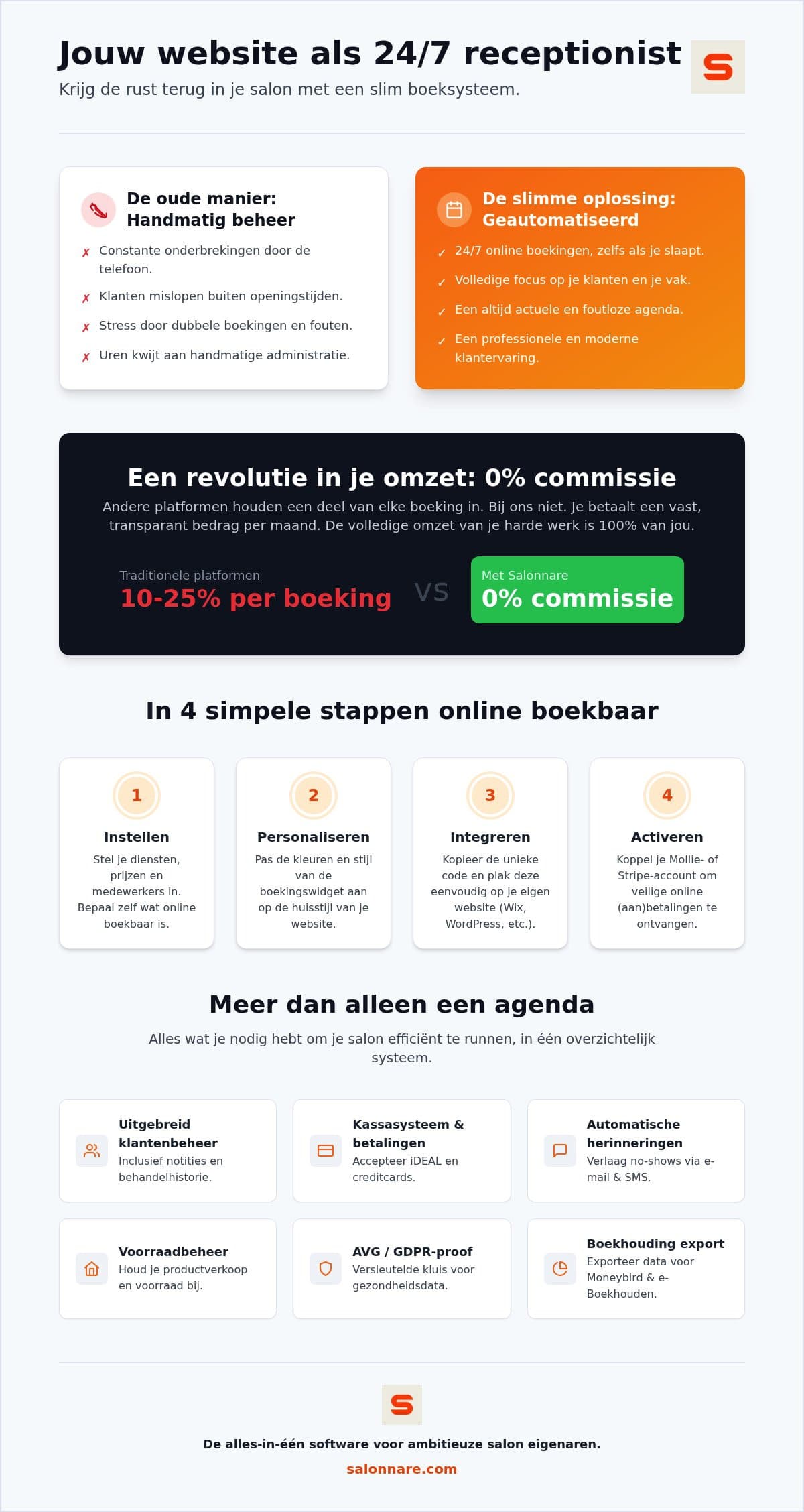
Step 1 is filling in your service list. Give every treatment a clear name, a price and a realistic duration. If you do colour work, split the active time from the processing time. When your system knows the difference, it can slot a short cut into that waiting window instead of blocking your entire afternoon.
Step 2 is adding your staff with their own working hours and specialisms. Not everyone on your team does balayage, and a system that knows this will not offer a slot that turns out to be wrong later. Permissions per staff member also let you control who sees what: a stylist works in their own calendar while you, as the owner, manage settings and reports.
You handle both steps in bookings management, where your calendar, services and staff come together. Set your ground rules here straight away: how many hours ahead someone can still book, how far into the future the calendar stays open, and whether only existing clients may book online or everyone.
Step 3: place the widget on your website
This is the step people dread, and it is the one that takes the least time. In your dashboard you generate an integration code, copy it and paste it into your website editor. You are usually done within fifteen minutes, and you need no programming knowledge at all.
You can choose between three formats. The floating button stays in the bottom corner and scrolls along on every page, which works best when visitors want to browse your work first. The inline widget puts the booking flow in the middle of a page, ideal for a dedicated "Book an appointment" page. The direct link is simply a button or menu item pointing to your booking page, handy when your site has little room. In WordPress you paste the code into an HTML block; in Wix or Squarespace into an embed element.
The widget adopts your brand through the colour you set in your branding options, and you choose the language and which side of the screen it sits on. A booking flow that feels familiar is not a detail: advisory bodies explaining selling online as a small business point out that every extra hurdle between intent and confirmation costs you customers. For every placement option and testing tip in one place, read the complete guide to booking widgets.
Step 4: switch on payments and deposits
An integration that only accepts appointments leaves money on the table. Once you enable payments, clients can pay by card or local methods straight away, and you decide whether that is a deposit or the full amount.
The advice is to use this selectively rather than everywhere. For a thirty-minute cut a deposit is usually overkill and puts people off. For a three-hour balayage it makes real sense: that is the appointment where a no-show genuinely hurts. Work out your own threshold by multiplying your average ticket value by the number of empty chairs per month.
With online payments you connect your own Mollie or Stripe account, so the money lands directly in your bank account. You pay your payment provider's standard transaction fees, and Salonnare only takes a 0.5% platform fee (min. €0.30) per payment, no other percentage of your revenue. That is a meaningful difference from booking platforms charging commission per booking, where your costs rise in step with how busy you get.
Step 5: test the flow and go live
Before you announce the widget, walk through it once as a client. Book an appointment on your phone, deliberately pick a staff member and a treatment, then check three things: is the appointment in your calendar, is the duration right, and did the confirmation email arrive? By far the most errors that would otherwise haunt you show up in this single test booking.
Also check what happens outside opening hours. A common mistake is a calendar offering slots on a day you are closed, simply because opening hours are still on their default values. The same goes for holidays: enter them right away.
Finally, enable automatic reminders. Clients then get a confirmation when they book and a reminder before the appointment, by email or WhatsApp. That catches the people who simply forgot, and they are by far the largest group of no-shows. Only then add the link to your booking page to your Google Business Profile and Instagram bio, so everything that comes in lands on a tested flow.
What the integration costs and what you keep
When comparing systems, the pricing model matters more than the monthly figure. A platform charging commission per booking gets more expensive as your calendar fills up. With a fixed monthly fee, that upside stays with you.
At Salonnare you pay a fixed amount: the Free plan is permanently free for one staff member and up to 50 bookings per month, Starter costs €29 per month and Pro €59 per month. For a self-employed hairdresser starting out, the free plan is often enough to build and try the whole integration. You can start free and connect your first booking widget and upgrade only when your salon grows.
What you get alongside it is more than a calendar. The point-of-sale follows Dutch VAT rules, your client data sits on servers inside the EU under GDPR, and sensitive details such as allergies live in a separately encrypted vault under Article 9. For your bookkeeping you export files that work with packages like Moneybird and e-Boekhouden. That is an export rather than a live integration, but it saves you retyping everything.
Connect your own website and let the bookings come in
Set up your treatments and staff, paste the widget onto your site and test one booking. The Free plan is permanently free for one staff member and 50 bookings per month, with only a 0.5% platform fee (min. €0.30) per payment. Start free at Salonnare via https://salonnare.com/en/free and expand as your salon grows.
Start freeFrequently asked questions
How long does it take to place the booking widget on my website?
Placing it usually takes no more than fifteen minutes. You select which treatments and staff are bookable online, generate the integration code and paste it where you want it in your website editor. Do allow extra time for preparation: setting up your service list and the duration of each treatment takes longer than the connection itself, and it determines whether your calendar is accurate.
Do I need to be technical to set up the integration?
No, you need no programming knowledge. The connection works with a snippet of code you copy and paste into your website admin. In WordPress you use an HTML block, in Wix or Squarespace an embed element. If you can add an image to a page, you can place the widget. You also choose between a floating button, an inline widget or a direct link to your booking page.
Can I control which treatments and staff are bookable online?
Yes, you decide per treatment and per staff member whether it appears in the online calendar. Many hairdressers put predictable treatments such as cuts online while keeping complex colour corrections on the phone so they can discuss them first. You also set how many hours ahead someone can still book, how far into the future the calendar stays open, and whether only existing clients may book online.
Are there extra costs for online payments?
Salonnare charges no general marketplace commission on your bookings, only a 0.5% platform fee (min. €0.30) per payment. You connect your own Mollie or Stripe account, so the money goes straight to your bank account. You also pay the standard transaction fees your payment provider charges. That is the difference from platforms taking a percentage per booking, where your costs climb as you get busier while here you keep a fixed monthly fee.
Does the booking widget work well on a smartphone?
Yes, and that matters because most clients book on their phone, often outside opening hours. The booking page scales with the screen. Test it yourself on your own phone after installing: walk through a complete booking and check the appointment, the duration and the confirmation email. That immediately shows whether your opening hours and treatment durations are set correctly.