



Add a booking widget to your salon website: choose, paste and test
You add an online booking widget to your salon website in three steps: choose the form, paste the code and test the booking route. After that, clients can book on their own, even while you are in the middle of a treatment. In this article you will see where the code goes in each website builder (WordPress, Wix, Squarespace), which five booking steps to test and, with a worked example, what it costs per month when clients pay online while booking.
Choose the form first: floating button, inline widget, booking button or link

A booking widget is the part of your website where a visitor picks a treatment and a time. Decide per page which form fits. In Salonnare you can choose from four:
- Floating button: stays in a corner of every page. You paste it once. - Inline widget: the booking form sits on the page itself, for example on a separate ‘Book an appointment’ page. - Booking button: a single button with your own text, for example under a treatment. - Direct link: the address of your booking page, for your Instagram bio, Google Business Profile or newsletter.
All forms lead to the same calendar, so you can combine them. An easy start is a floating button across the whole site plus an inline widget on one booking page. Want to know the difference between showing a calendar, letting clients book and syncing to your phone? Read connect an online calendar to your salon website.
How to paste the code into WordPress, Wix or Squarespace
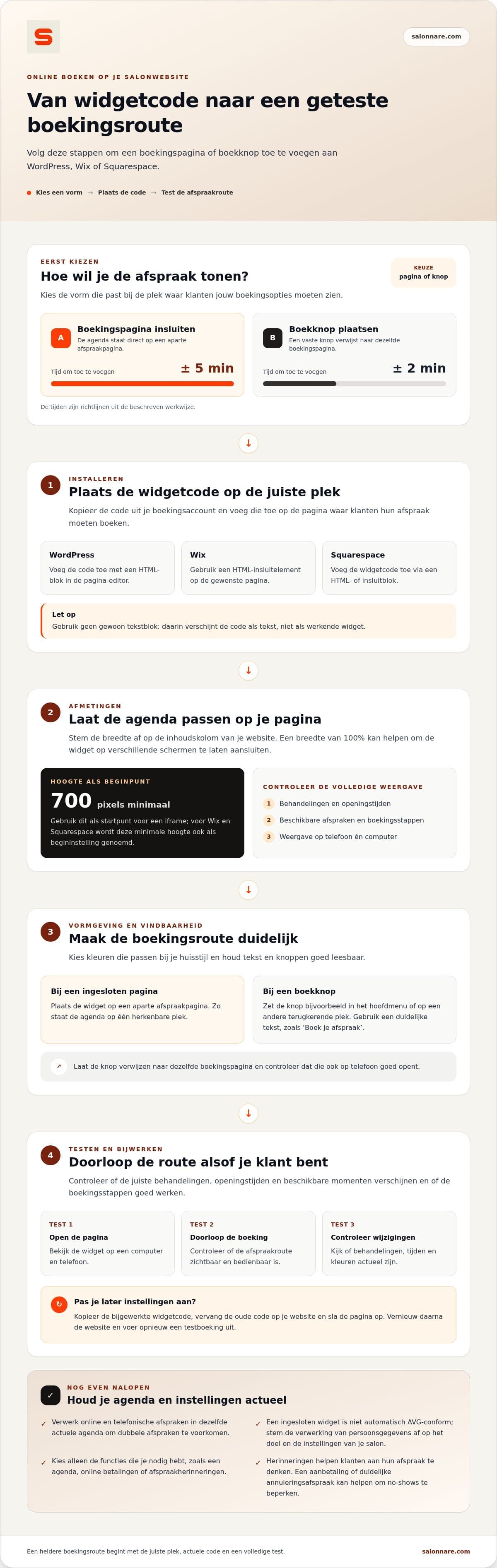
Get the code from the booking widget settings in your Salonnare account and copy it. Then paste it into a block that accepts code. In a plain text block the code shows up as text, so no widget appears.
1. WordPress: open the page in the editor, add a custom HTML block and paste the code. 2. Wix: add an element for embedding HTML code and paste the code into it. 3. Squarespace: add a code block and paste the code. Which website plans allow code blocks is up to Squarespace; check that before you start.
Save the page, then open the published page, not just the preview in the editor. Can you see the button or the form? Then the widget is in place. If you later change the form or the button text, check whether you need to paste the updated code again. You can read more about the calendar behind it under bookings management.
Test the five booking steps on your phone and your computer
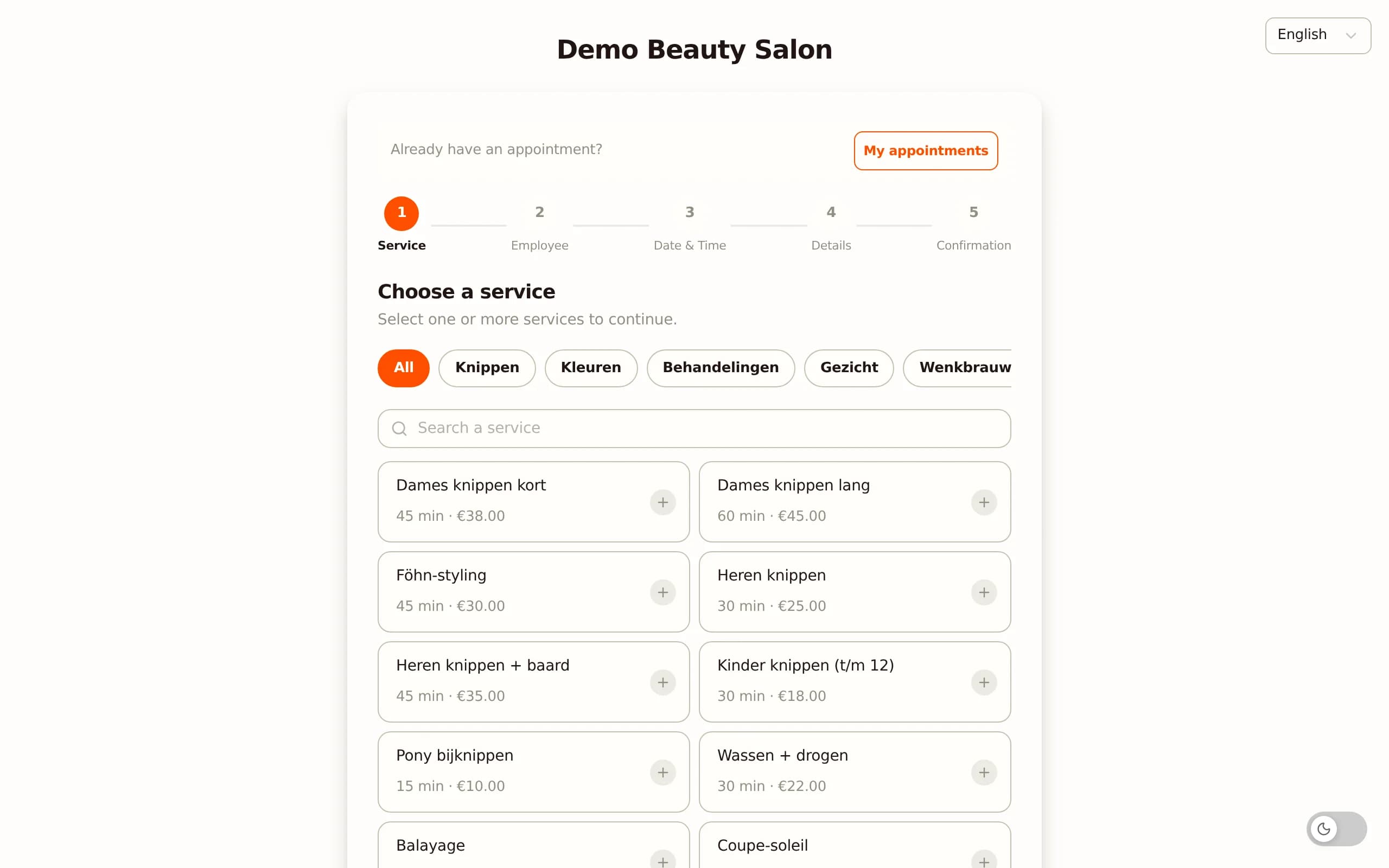
The booking page runs in five steps: Treatment, Staff member, Date & Time, Details and Confirmation. Make a test booking and check one thing per step:
1. Treatment: are the names, durations and prices the way your clients know them? 2. Staff member: are the right people listed? 3. Date & Time: do the free times match your calendar? 4. Details: is the form easy to fill in on a narrow screen? 5. Confirmation: does the confirmation arrive at your own email address and is the appointment in your calendar? Delete the test appointment afterwards.
Do this on a phone and on a computer, and on every page where you placed a button or widget. Repeat the test whenever you change treatments, pages or button texts.
Worked example: what does online booking with payment cost per month?
Salonnare has three plans: Free €0, Starter €9.99 and Pro €14.99 per month. Free is for 1 staff member and 50 appointments per month; online payments are part of Starter. Each online or card payment carries a platform fee of 0.5%, with a minimum of €0.30. Take a salon with 60 online bookings in one month where the client pays straight away:
1. 30 payments of €50: 0.5% of €50 is €0.25. That is below the minimum, so €0.30 per payment. 30 × €0.30 = €9.00. 2. 30 payments of €90: 0.5% of €90 is €0.45, above the minimum. 30 × €0.45 = €13.50. 3. Platform fee in total: €9.00 + €13.50 = €22.50. 4. Plus Starter: €9.99 + €22.50 = €32.49 per month.
The costs charged by Mollie or Stripe come on top of that; you will find those rates with the provider. The money goes to your own account. Bookings where the client only pays at the salon fall outside this example. Check it with your own numbers before you choose a plan; all prices are on the pricing page.
Salonnare: widget, calendar and checkout in one place
Salonnare combines the booking widget with a calendar, a checkout with VAT support and client records with an encrypted vault for health data (GDPR Art. 9). You start free with the Free plan. Payments run through iDEAL (Mollie) and card (Stripe) to your own account, after the provider’s costs and a platform fee of 0.5% (min. €0.30) per payment. Read more about online payments and deposits.
Put your first booking button live today
Choose the form, paste the code and make one test booking. You start free with the Free plan.
Start freeFrequently asked questions
What is a booking widget?
A booking widget is a booking form or button on your salon website. Visitors pick a treatment and an available time themselves, without calling first.
Do I need a web developer?
Usually not. You need to be able to edit pages and add a block for HTML or embed code. That is possible in WordPress, Wix and Squarespace.
Why do I see text or code instead of the widget?
Then the code sits in a plain text block. Move it to a custom HTML block, an embed element or a code block, save, and look at the published page.
What does a booking widget cost with Salonnare?
The widget is part of every plan, including Free (€0 per month, for 1 staff member and 50 appointments per month). Starter costs €9.99 and Pro €14.99 per month. If clients pay online while booking, each online or card payment carries a platform fee of 0.5%, with a minimum of €0.30.